War das hilfreich?
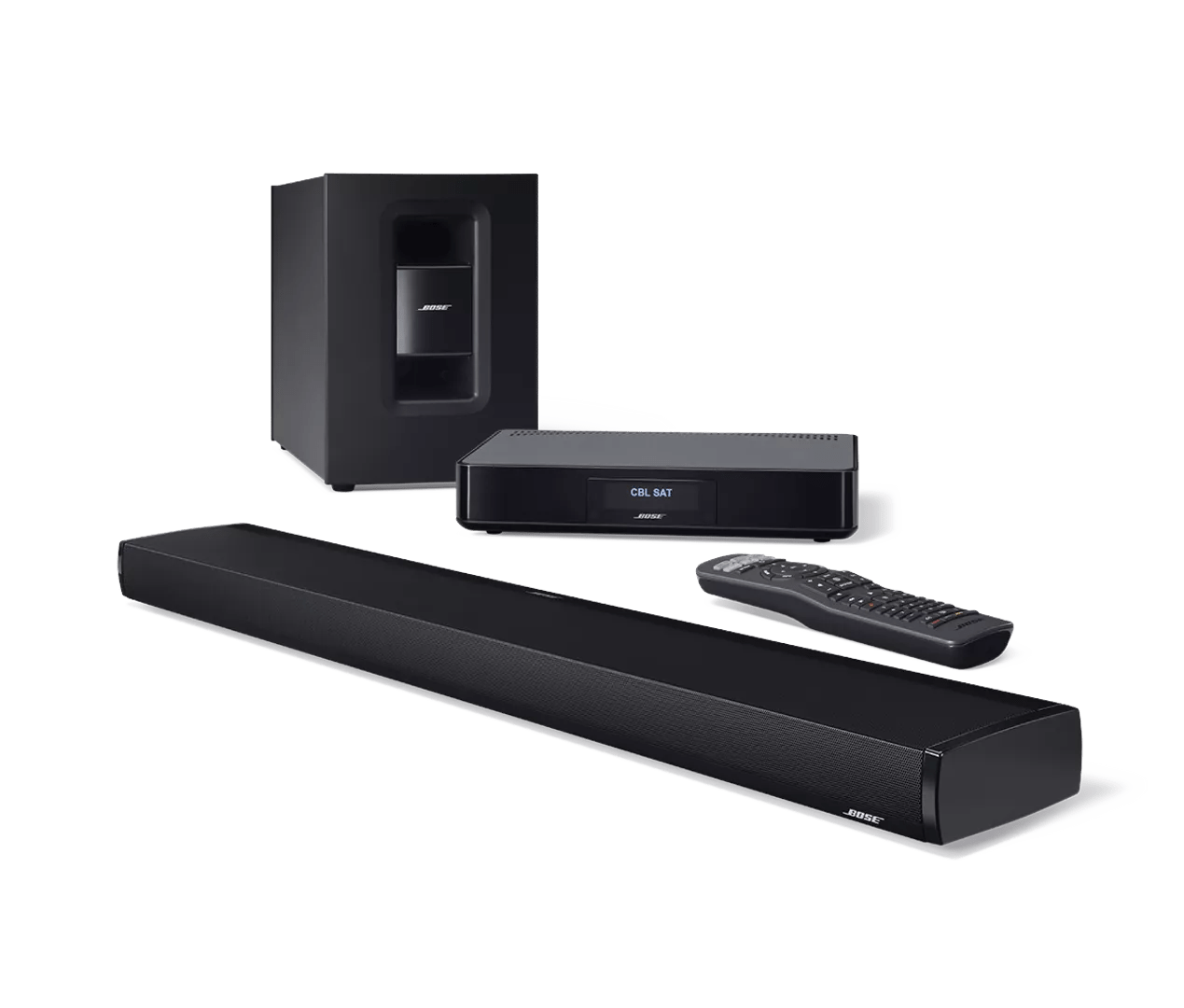
Aktualisierung der Software oder Firmware Ihres Produkts | CineMate® 130 home theater system
Wählen Sie eine der untenstehenden Aktualisierungsmethoden aus:
Aktualisieren über den drahtlosen Einrichtungsmodus
Update your system using the built-in setup network.
- Download the appropriate update file for your model of SoundTouch adapter. Refer to the model number located in the upper-right corner of the label on the bottom of the adapter.
- If the model number is 412451-SM2, click here to download the update file.
- If the model number is 412451, click here to download the update file.
Do not rename the file.
- Put the adapter into Setup mode:
• On the back of the adapter, press-and-hold the Control button for about 10 seconds, release the button when the Wi-Fi status indicator light next to the Control button flashes once then glows amber.
• The Wi-Fi status indicator light will glow amber while in Setup mode. - Connect to the Wi-Fi setup network of the SoundTouch adapter. The network name typically starts with Bose (e.g. Bose SoundTouch) or the name you gave the system.
If you're device tells you there is no Internet connection with this network, connect anyway. - In a web browser, go to the update page:
- If you are using a series I SoundTouch adapter (Model 412451), go to http://192.168.1.1:17008/update.html
- If you are using a series II SoundTouch adapter (Model 412451-SM2), go to http://192.0.2.1:17008/update.html
Tip: Series II adapters have Bluetooth and series I adapters do not.
- Select Choose File, then select the update file you downloaded earlier to begin the update.
Aktualisierung mit einem Computer und USB-Kabel
To update your product:
- Download the appropriate update file for your model of SoundTouch adapter. Refer to the model number located in the upper-right corner of the label on the bottom of the adapter.
- If the model number is 412451-SM2, click here to download the update file.
- If the model number is 412451, click here to download the update file.
Do not rename the file.
- Connect a USB cable from the computer to your system.
Tip: If your system has two USB jacks, use the smaller jack on the system. - Once connected, open an Internet browser on the computer and go to http://203.0.113.1:17008/update.html to open the updater.
IMPORTANT: This address will not work until you connect your system to a computer with USB as described in the steps above. - Click Choose File and select the update file downloaded in step 1.
- Click Upload to start the update.
- Wait while the sytsem updates: A progress bar shows the download status then, once completete, your system reboots.
- Disconnect the USB cable and close the updater window.
If your computer does not reconnect to your Wi-Fi network after updating your product, restart the computer.
Aktualisieren Sie den SoundTouch Adapter mit der SoundTouch App
Aktualisieren eines SoundTouch-Adapters über die SoundTouch-App.
Hinweise:
- Bei SoundTouch-kompatiblen Lifestyle Systemen, die einen SoundTouch Adapter verwenden, werden sowohl die Konsole als auch der Adapter aktualisiert, wenn die Konsolensoftware Version 02.09.01 oder neuer ist.
- Bei SoundTouch-kompatiblen CineMate Systemen werden sowohl die Konsole als auch der Adapter aktualisiert, wenn die Konsolensoftware Version 01.03.01 oder neuer ist.
- Bei Systemen mit älterer Konsolensoftware wird nur die Adapter- bzw. SoundTouch-Funktionalität über den Aktualisierungsvorgang der SoundTouch App aktualisiert.
So aktualisieren Sie ein System über die SoundTouch App:
- Wählen Sie in der SoundTouch App das Menüsymbol ☰ in der oberen linken Ecke aus.
- Wählen Sie Einstellungen > Lautsprechereinstellungen.
- Wählen Sie SOFTWARE AKTUALISIEREN oder ALLE AKTUALISIEREN , wenn mehrere Systeme aktualisiert werden müssen.
Wenn kein Update verfügbar ist, ist die Schaltfläche SOFTWARE AKTUALISIEREN nicht auswählbar. - Warten Sie, bis das Update abgeschlossen ist. Je nach Größe des Updates und der Geschwindigkeit Ihres Netzwerks kann dies bis zu 20 Minuten pro System dauern. Nach der Aktualisierung startet das System neu.
Aktualisieren Sie den SoundTouch Adapter über ein USB-Laufwerk.
To update your SoundTouch adapter using a USB drive:
- On a computer, download the appropriate update file for your model of SoundTouch adapter. Refer to the model number located in the upper-right corner of the label on the bottom of the adapter.
- If the model number is 412451-SM2, click here to download the update file.
- If the model number is 412451, click here to download the update file.
- When prompted, save the Update.stu file. Do not rename the file.
If a download prompt does not appear, the file may have downloaded automatically. Look for file in a browser notification or in the Downloads folder. - Connect a blank USB drive to your computer and copy the update file to it, then disconnect the USB drive.
- Turn the Bose system on.
- On the back of the control console, disconnect the Bose link cable which hard-wired to the SoundTouch adapter.
- On the back of the SoundTouch adapter, insert the USB drive into the SETUP B connector.
- Unplug the USB cable from the SETUP A connector.
- Simultaneously press-and-hold the Control button and reconnect the Bose link cable to the control console.
- Three seconds after reconnecting the Bose link cable, release the Control button.
- Wait for the update to complete. The Wi-Fi indicator on the back of the adapter will blink during the update. This typically takes about five minutes.
- Once complete, disconnect the USB drive from the adapter.
- Reconnect the USB cable to the SETUP A connector.
- Reconnect the system to your network and Bose account. For more info, see Adding a system to your Bose SoundTouch account
Aktualisieren Sie die Steuerkonsole mithilfe eines USB-Laufwerks.
To update your system:
- Power on your system. The LED on the bass module should be solidly lit.
- On the back of the bass module, connect a USB flash drive to the port labelled Service or USB. After a few seconds, the bass module light turns green, might blink, then turns off.
If the light does not change after connecting the USB drive, remove and reinsert the drive. - When the light turns off, remove the USB drive.
- Click here to download the Bose updater for Windows or Mac, and complete the update process.
Holen Sie sich Hilfe, wenn das Update sich nicht installieren lässt.
Prüfen Sie die Firmware-Version Ihres Produkts.
Anweisungen finden Sie unter Überprüfen der Software- oder Firmware-Version.
Um festzustellen, ob es sich um die neueste Version handelt oder eine neuere Version verfügbar ist, finden Sie weitere Informationen unter Software- und Firmware-Versionen.