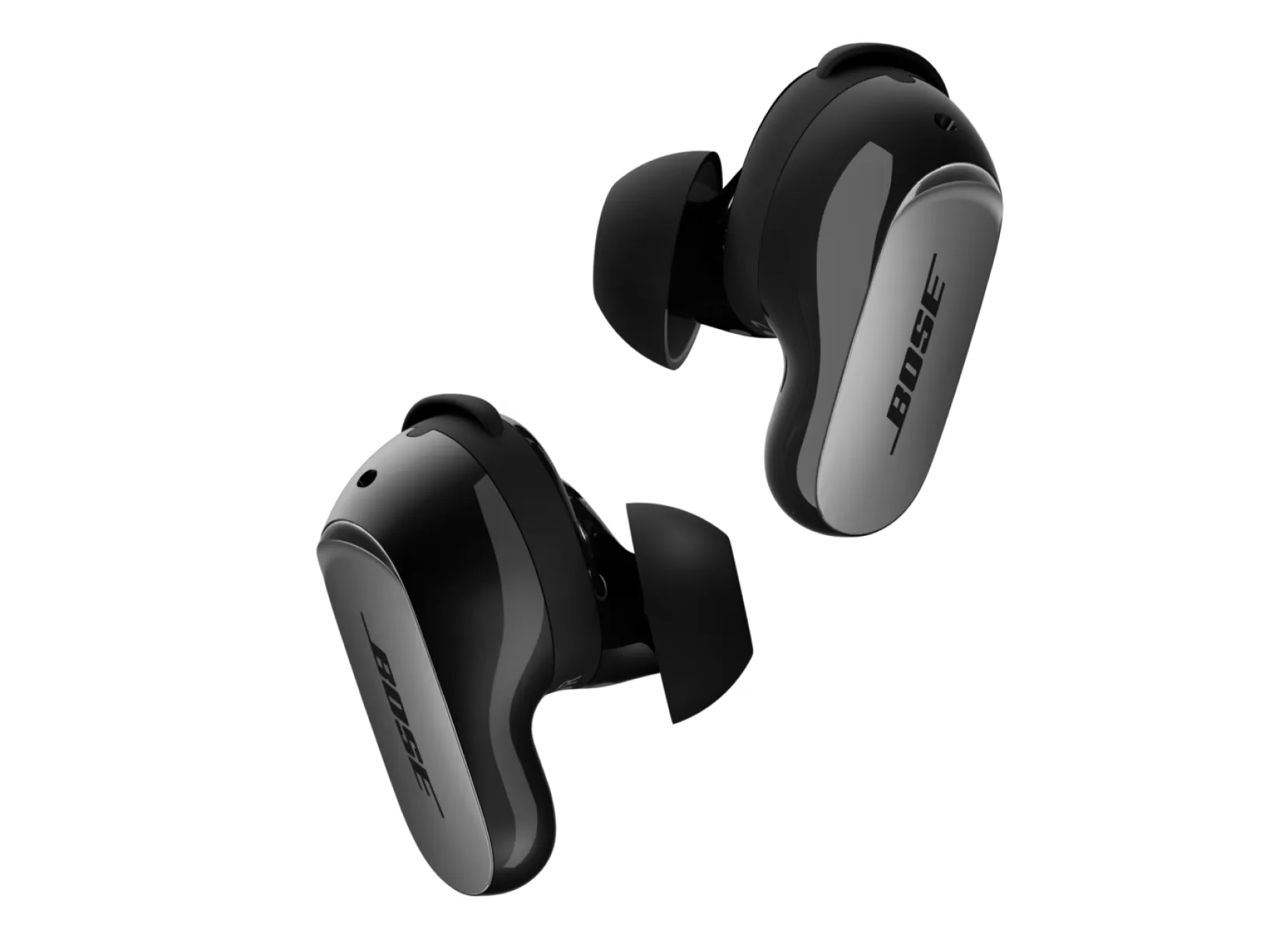
Bluetooth-Gerät verbinden | Bose QuietComfort Ultra Earbuds (2nd Gen)
bose-quietcomfort-ultra-earbuds-(2nd-gen)
Bose QuietComfort Ultra Earbuds (2. Gen.)Verkauft von 2025

Bluetooth-Gerät verbinden | Bose QuietComfort Ultra Earbuds (2nd Gen)

Haben Sie dieses Bluetooth-Gerät schon einmal mit Ihrem Bose Produkt verbunden?

Ja.

Verwenden Sie die Produktsteuerung, um sich automatisch mit einem Gerät zu verbinden, das Sie zuvor gekoppelt haben.

Automatische Verbindung

Wenn Sie die Ohrhörer aus dem Ladecase nehmen, versuchen sie, sich mit den letzten beiden Geräten zu verbinden, mit denen sie gekoppelt waren.

  • Die Geräte müssen eingeschaltet und innerhalb von 9 Metern (30 Fuß) Reichweite sein.
  • Bluetooth muss auf diesen Geräten aktiviert sein.
  • Wenn die Multipoint-Verbindung deaktiviert ist, verbinden sich die Ohrhörer nur mit dem zuletzt verwendeten Gerät.

Wiederverbindung mit einem anderen Gerät

Sie können eine Verknüpfung auf Ihren Ohrhörern erstellen, um zu einem anderen Gerät zu wechseln. Erfahren Sie mehr unter: Verwendung der Touch-Steuerung-Verknüpfung.

So wechseln Sie Geräte mit der Touch-Steuerung-Verknüpfung:

  • Berühren und halten Sie den Ohrhörer mit der Verknüpfung.
  • Eine Stimme nennt die verbundenen Geräte sowie andere, die Sie zuvor verwendet haben.
  • Lassen Sie Ihren Finger los, sobald Sie den Namen des gewünschten Geräts hören.
  • Sie hören einen Ton, sobald die Verbindung hergestellt ist.

Weitere Möglichkeiten zum Wechseln:
Verwenden Sie die Bose-App oder ändern Sie die Verbindung in den Bluetooth-Einstellungen Ihres Geräts.

Hinweis:
Wenn bereits zwei Geräte verbunden sind, wird durch den Wechsel zu einem neuen Gerät das ältere Gerät getrennt.

Nein

Versetzen Sie Ihre Ohrhörer in den Pairing-Modus

Wenn sich die Ohrhörer im Ladecase befinden und das Ladecase geöffnet ist, halten Sie die Taste auf der Rückseite des Ladecases gedrückt, bis die Statusanzeige der Ohrhörer langsam blau pulsiert.
HINWEIS: Stellen Sie sicher, dass sich beide Ohrhörer im Ladecase befinden und das Ladecase geöffnet ist.

Mit welchem Gerät möchten Sie koppeln?

Smartphone or Tablet

Connect your earbuds to a previously paired smartphone


Note - though the product listed in the image may be different, the process is the same
  1. Go to your Bluetooth device settings and select the Bose Earbuds.

    NOTE: Look for the name you entered for your earbuds in the Bose app. If you didn’t name your earbuds, the default name appears.

    • For iPhone:
      • On your iPhone, tap the Settings app.In the Settings menu, tap Bluetooth, and make sure Bluetooth is turned on.Under \"Other Devices,\" find your Bose earbuds name in the list and tap on it to connect.
    • For Android:
      • On your Android device, swipe down from the top of the screen and tap the gear icon to access settings.In the settings menu, tap \"Connections\" or \"Connected Devices\" and then tap Bluetooth. Ensure Bluetooth is turned on. Under \"Available Devices,\" find your Bose earbuds name and tap on it to connect.
  2. The earbuds appear in the list of connected products. The earbuds' status light glows solid blue, confirming the connection.
Computer

Bluetooth pairing with a computer


Note - though the product listed in the image may be different, the process is the same
  1. Go to your Bluetooth device settings and turn on Bluetooth:
    • Windows: Click the upward arrow in the system tray (bottom-right corner) to reveal hidden icons. Then, click the Bluetooth icon and select \"Add a Bluetooth Device.\"
    • Mac: Go to the Apple menu, open System Preferences, and check if Bluetooth is enabled.
  2. Open the Bluetooth pairing window:
    • Windows: Click Add Bluetooth or other device, and select Bluetooth.
    • Mac: Open the Bluetooth settings from System Preferences.
  3. Select the Bose earbuds:
    • Windows: Find your Bose earbuds in the list and click on it to connect.
    • Mac: Locate your Bose earbuds in the list of devices and click Connect.
  4. The earbuds appear in the list of connected products. The earbuds' status light glows solid blue, confirming the connection.
TV

Bluetooth pairing with a TV

Please note that these are general steps for TV Bluetooth settings. For more specific guidance, refer to your TV brand's owner’s manual or visit their support website.

  1. Access TV’s Bluetooth Settings:
    • Turn on your TV.
    • Navigate to the TV’s settings menu, typically by pressing the \"Menu\" button on your TV remote.
    • Look for \"Bluetooth\" or \"Audio\" settings. If your TV has Bluetooth, this option will be listed.
  2. Pair the Devices:
    • Under the Bluetooth settings, select \"Add a Bluetooth Device\" or similar.
    • Your TV will search for available devices. Select your Bose earbuds when it appears in the list.
    • Wait for the pairing process to complete.
  3. Once connected, your TV will confirm the connection and the earbuds' status light glows solid blue, confirming the connection.

Wenn Sie keine Verbindung zu einem Bluetooth-Gerät herstellen können

Siehe Fehlerbehebung für Kann kein Bluetooth-Gerät verbinden.