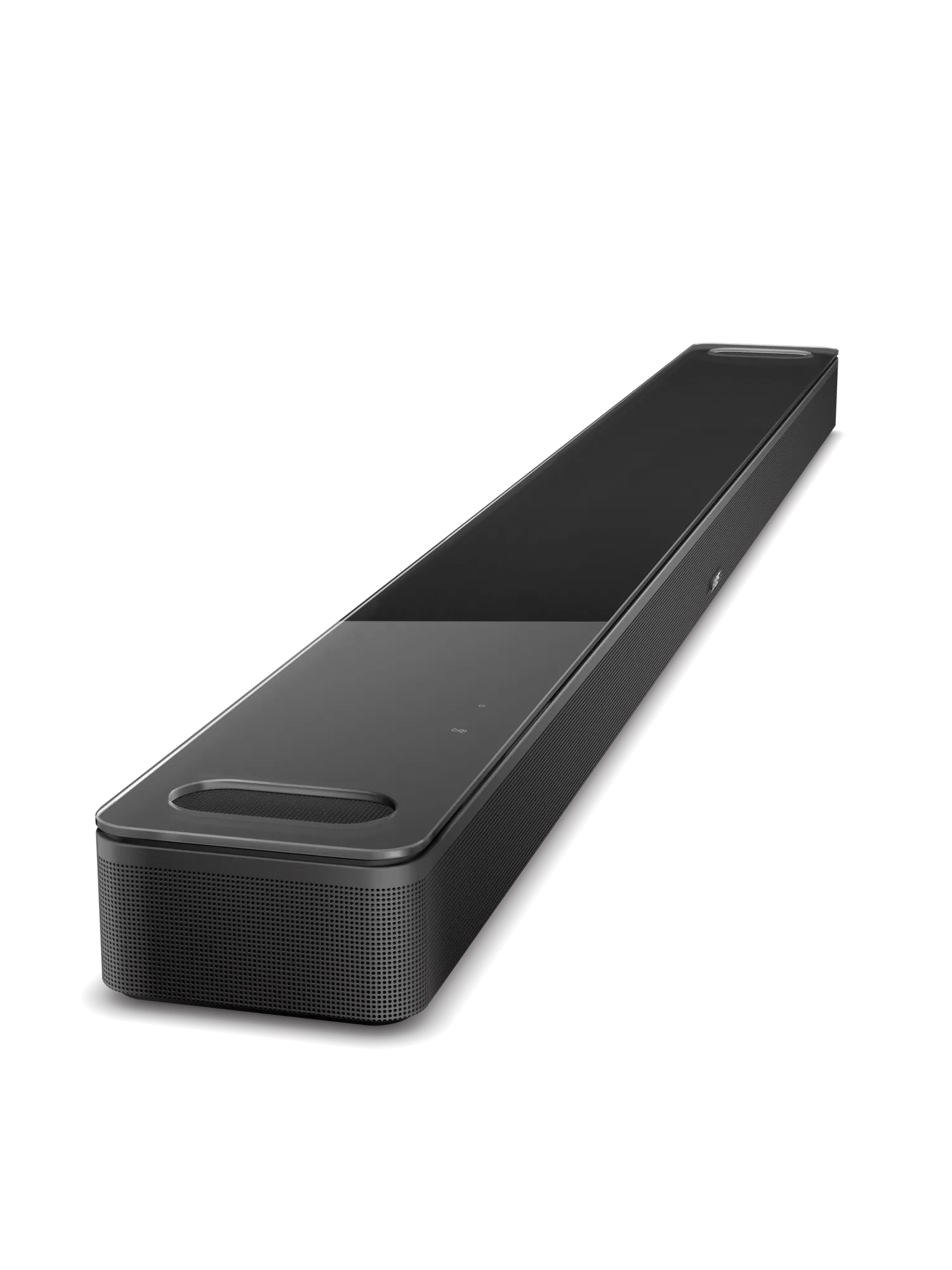
Tippen Sie auf Ihrem Produkt auf die Schaltfläche „Aktion“, und prüfen Sie, ob es auf Ihre Anfrage hört.
Tippen Sie oben
auf dem Produkt auf die Aktionstaste ○, um auf Ihre Sprachanfrage zu hören. Während des Hörens gleitet die Lichtleiste auf der Vorderseite des Produkts in die Mitte und leuchtet. Wenn die Leuchtleiste dies nicht tut, wenn Sie auf die
Schaltfläche Aktion tippen, hört sie nicht auf Ihre Anfrage. Weitere Hilfe finden Sie unter
Google Assistant reagiert nicht auf die Aktionstaste oder das Weckwort.
Wenn es Lärm im Zimmer gibt, versuchen Sie es zu reduzieren.
Wenn ich da bin, dann bin ich ziemlich laut im Zimmer (d. h. Mehrere Personen sprechen oder laute Musik hören), kann Ihr Produkt Sie möglicherweise nicht hören. Versuchen Sie, den Lärm im Raum zu reduzieren, lauter zu sprechen oder näher am Produkt zu sprechen.
Versuchen Sie, einen Internetradiosender oder Musikdienst zu streamen, um zu bestätigen, dass das Produkt mit dem Internet verbunden ist.
Das Produkt muss über eine aktive Internetverbindung verfügen. Wenn keine Internetdienste erreichbar sind, lesen Sie den Abschnitt
Verbindung zum Wi-Fi-Netzwerk nichtmöglich .
Try phrasing the command differently.
Google Assistant can interpret many variations of command phrases and is always growing its vocabulary. Some phrases, however, might not be recognized. To determine if this is the issue, try phrasing the command differently.
If you are trying to control a music service by voice, be sure the music service has been added to your Bose and Google accounts.
Check that \"Web & App Activity\" is enabled in the Google Assistant app.
For the Google Assistant to work properly, enable "Web & App Activity" in your Google account. In the Google Assistant app, go to "Account" > "Manage your Google Account" > "Data & personalization," then turn on "Web & App Activity."
Not all Google Assistant features are available with non-Google devices.
Some Google Assistant features are unavailable on non-Google-made products. Additionally, some features of your Bose product cannot be accessed via Google Assistant. For information about Google Assistant features and abilities not supported with your Bose system, see
Features not available with Google Assistant.
Remove and re-add Google Assistant in the Bose app.
Open the Bose app and remove Google Assistant. Then, re-add the same Google Assistant account. This re-links Google Assistant to your Bose account and can correct any issues that may have occurred between the two accounts.
If troubleshooting fails and multiple customers are reporting this issue, contact the assist line to check if the service is down.
If all troubleshooting fails, the assist line can check if a service is down on the Bose Cloud Status Page.
Note: It is rare for a service to go down, so try all troubleshooting first.