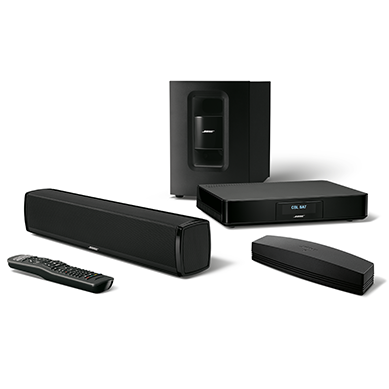
App does not display properly | SoundTouch® 120 home theater system
soundtouch®-120-home-theater-system
SoundTouch® 120 home theater systemVerkauft von 2015 - 2016

App does not display properly | SoundTouch® 120 home theater system

Deinstallieren Sie die App, laden Sie die neueste Version erneut herunter und installieren Sie die App erneut.

Auf einigen Geräten kann es vorkommen, dass die App das Update nicht korrekt über die vorhandene Version installieren kann. In diesem Fall muss die App erneut heruntergeladen und installiert werden. Sie müssen sich beim Öffnen der neuen Installation in Ihr SoundTouch-Konto einloggen. Netzwerk-Anmeldedaten, Musikdienste und Bibliothekseinstellungen müssen nicht erneut eingerichtet werden, da die Informationen zu diesen Konfigurationen beibehalten werden.

Anweisungen zur Deinstallation finden Sie unter Deinstallieren der SoundTouch App.

Wenn Sie die App neu installieren, achten Sie auf eventuell erscheinende Pop-up-Meldungen bezüglich der SoundTouch App und des SoundTouch Music Server. Je nach installierter Firewall- oder Sicherheitssoftware, wenn eine "immer zulassen" option is available, be sure to select this option; Otherwise select the option that allows for firewall access over any option that denies, restricts or limits firewall access. The latest version of the app can be found at www.bose.com/soundtouch_app

If the contents of the app only display in the upper-left corner of the window, enable the \"Open in Low Resolution\" mode.

  1. Locate the SoundTouch app in the Applications folder
  2. Right click on /Applications/SoundTouch/SoundTouch.app
  3. Select "Get Info"
  4. In the pop-up window that appears, select the "Open in Low Resolution" checkbox
  5. Close and reopen the SoundTouch app
  6. Sign out of and sign back into the account

For Intel-based PCs, choose another graphics processor, if available.

Some Intel-based computers might have an Intel graphics processor as well as a second graphics processor. Try using the non-Intel graphics process by right-clicking the desktop and choosing the non-Intel graphics control panel (i.e. NVIDIA control panel). In the control panel, select the non-Intel processor for graphics