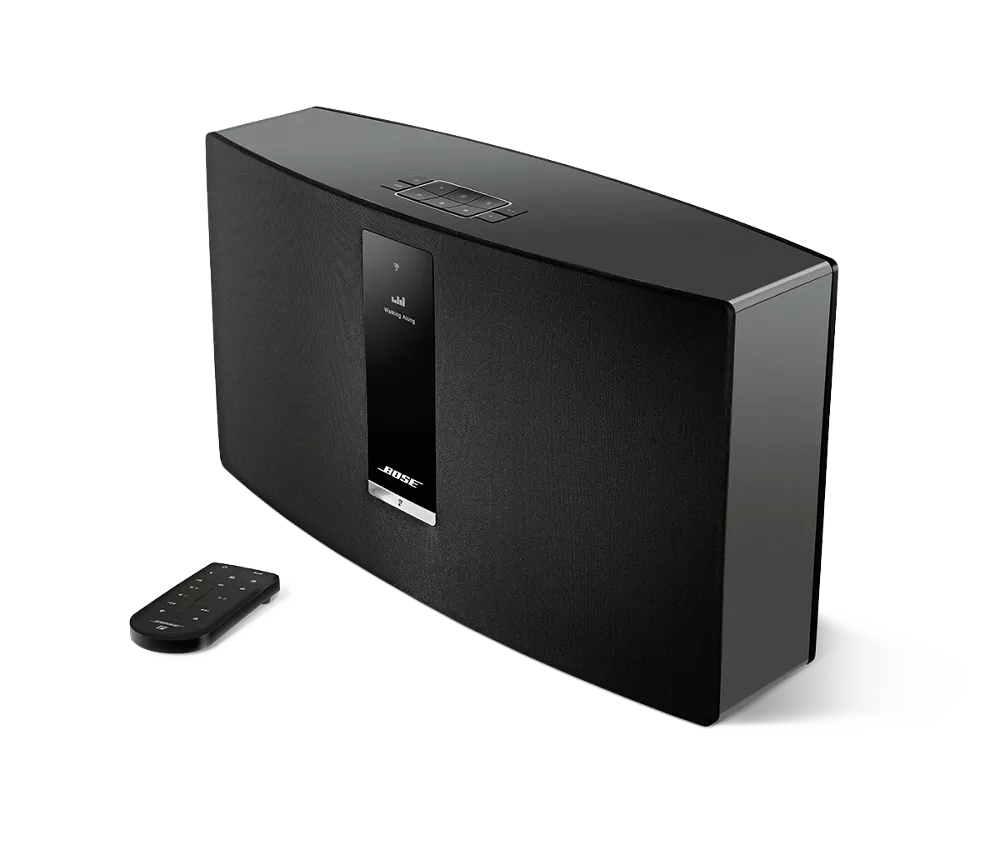
Determining the MAC address | SoundTouch® 30 Series II Wi-Fi® Music System
soundtouch®-30-series-ii-wi-fi®-music-system
SoundTouch® 30 Series II Wi-Fi® Music SystemVerkauft von 2014 - 2015

Determining the MAC address | SoundTouch® 30 Series II Wi-Fi® Music System

So zeigen Sie die MAC-Adresse des Geräts an:

Hinweis: Es gibt zwei MAC-Adressen , sfor, die Sie rsystem.
  1. Halten Sie oben auf dem Produkt die Tasten 5 und Volume - gedrückt: Auf dem Display wird die Taste Halten angezeigt, um Systeminformationen anzuzeigen, und ein Countdown von 5 beginnt

    \"Holding
     
  2. Lassen Sie nach Abschluss des Countdowns die Tasten los: MAC-Adresse wird auf dem Systemdisplay angezeigt
  3. Drücken Sie die Taste Lautstärke - , um durch die beiden MAC-Adressen zu blättern:
    Hinweis: Wenn 1,1 AirPlay MAC-Adresse, müssen Sie Ihr System aktualisieren
    1. 1,1 Ethernet MAC-Adresse: Identifiziert Ihr verdrahtetes   Netzwerk
    2. 1,2 Wi-Fi MAC-Adresse: identifiziert Ihr Produkt in einem drahtlosen Netzwerk
  4. Drücken Sie die ein-/aus -Taste, um das Menü zu verlassen.

To obtain the MAC address of the system using a tethered USB connection, follow these steps:

This method requires a computer (PC or MAC) and will work on all SoundTouch SM1 and SM2 products. It does not require us to determine the IP address of the system on the network
  1. In the SoundTouch computer app, begin the setup process (Settings > Add or Reconnect System)
  2. When you reach the "Connect to home Wi-Fi network" screen, choose "System Information" to view the system's MAC address


To obtain the MAC address of the system using a tethered USB connection, follow these steps:

This method requires a computer (PC or MAC) and will work on all SoundTouch SM1 and SM2 products. It does not require us to determine the IP address of the system on the network.
  1. Connect a USB cable from your computer to the SoundTouch system
  2. On a desktop/laptop computer, open a browser and go to http://203.0.113.1:8090/info
  3. The following info will be shown:
    1. System Name
    2. System Type
    3. SoundTouch Account Number
    4. Firmware Version
    5. SCM Serial Number
    6. System Serial Number
    7. SoundTouch Controller Information (if connected)
    8. SCM Information (MAC Address, Serial Number)
    9. SMSC Information (MAC Address, Serial Number)

So zeigen Sie die MAC-Adresse des Produkts in der SoundTouch-App an:

  1. Im SoundTouch App-Menü tippen Sie auf Einstellungen
    Tipp: Um das App-Menü zu öffnen, tippen Sie auf das Menü-Symbol in der oberen linken Ecke

    \"Main

  • Tippen Sie auf Info, und wählen Sie dann ein System aus

    \"Settings \"About

    Der Bildschirm Lautsprecher-Details zeigt Informationen zum ausgewählten System an.

    \"Speaker