Determine if the proper file type was downloaded for the computer operating system in use.
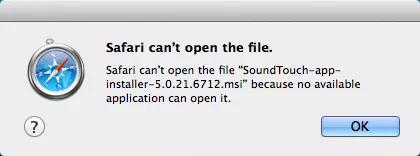
- A file ending with a .msi extenstion will not run on a Mac
- A file ending with a .dmg extension will not run on a Windows PC
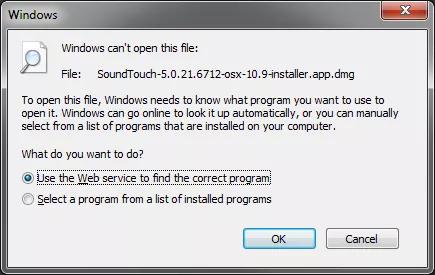
If the wrong file type was download, delete the file and return to the Bose website to download the appropriate version of the app. If the site only provides one "Download Now" button, click the View All link underneath the button to show the three Download Now button options. Select the one that corresponds to the computer's operating system.
Mac-Nutzer müssen möglicherweise die Control-Taste (Ctrl) gedrückt halten, wenn sie die Datei öffnen.
Verschiedene Versionen von Mac OS können Bose nicht als Entwickler identifizieren. OS X Mountain Lion (Version 10.8) enthält eine Funktion namens Gatekeeper, die Benutzer davor schützt, Anwendungen von Entwicklern zu installieren, die nicht von Apple identifiziert wurden. OS X Mavericks (Version 10.9.5) kann Bose vorübergehend ebenfalls nicht als Entwickler erkennen.
Um die Anwendung zu öffnen, führen Sie folgende Schritte aus:
- Halten Sie die Taste „Control“ gedrückt und klicken Sie dabei auf das Anwendungssymbol.
Hinweis: Verwenden Sie hierfür nicht Launchpad. Launchpad ermöglicht keinen Zugriff auf das Kontextmenü.
- Wählen Sie im angezeigten Menü oben in der Liste „Öffnen“.
- Ein Bestätigungsfenster wird angezeigt. Wählen Sie „Öffnen“.
Ohne Control-Klick:
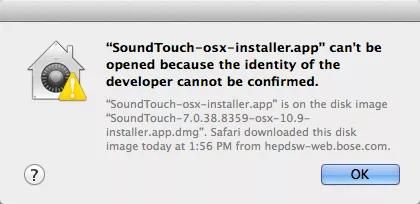
Mit Control-Klick:
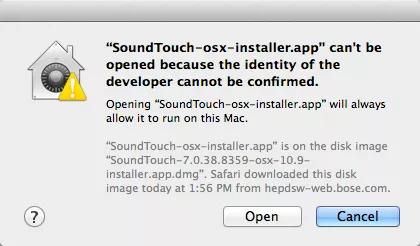
Weitere Informationen zu Gatekeeper finden Sie unter
http://support.apple.com/kb/HT5290Weitere Informationen zum Öffnen von Apps nicht identifizierter Entwickler unter Mavericks finden Sie unter
http://support.apple.com/kb/PH14369Have the user log in to the computer as the Administrator to install the app.
The user account used to log in to the computer may have restricted access to the folder where the installer file is located. If unable to log into the Admin account, try downloading the install file to a folder that the user's acount is able to access
Stellen Sie sicher, dass das verwendete Gerät die unterstützten Mindest-Systemanforderungen erfüllt.
Prüfen Sie die Produktdokumentation hinsichtlich kompatibler Betriebssysteme.
Versuchen Sie, die App auf einem anderen Computer herunterzuladen.
Wenn Sie die App wie erwartet auf einem anderen Computer herunterladen und ausführen können, liegt das Problem beim ersten Computer.
Starten Sie den Computer neu.
Computer müssen möglicherweise von Zeit zu Zeit neu gestartet werden. Fahren Sie Ihren Computer herunter, schalten Sie ihn dann wieder ein und versuchen Sie es erneut. (Hinweis: Um Ihren Computer neu zu starten, wählen Sie Herunterfahren oder Neustart; wählen Sie nicht Energie sparen oder Ruhezustand.)
For Windows 7, 8, or 10, set the permissions of C:\Windows\temp to "Full control".
Change the folder permissions using the instructions below. Then try the installation again.
- Go to C:\Windows
- Right-click the "temp" folder and choose Properties
- On the "Sercurity" tab, click "Edit"
- For "Full control," check "Allow"
- Choose "Apply," then "OK"